Movie Maker

Windows 10 projects

What movie maker examples windows 10 creators can make

Start with footage you already have, then choose one clear story to tell. These movie maker examples windows 10 users can plan cover personal, work, and channel projects without assuming that every editor has the same tools.

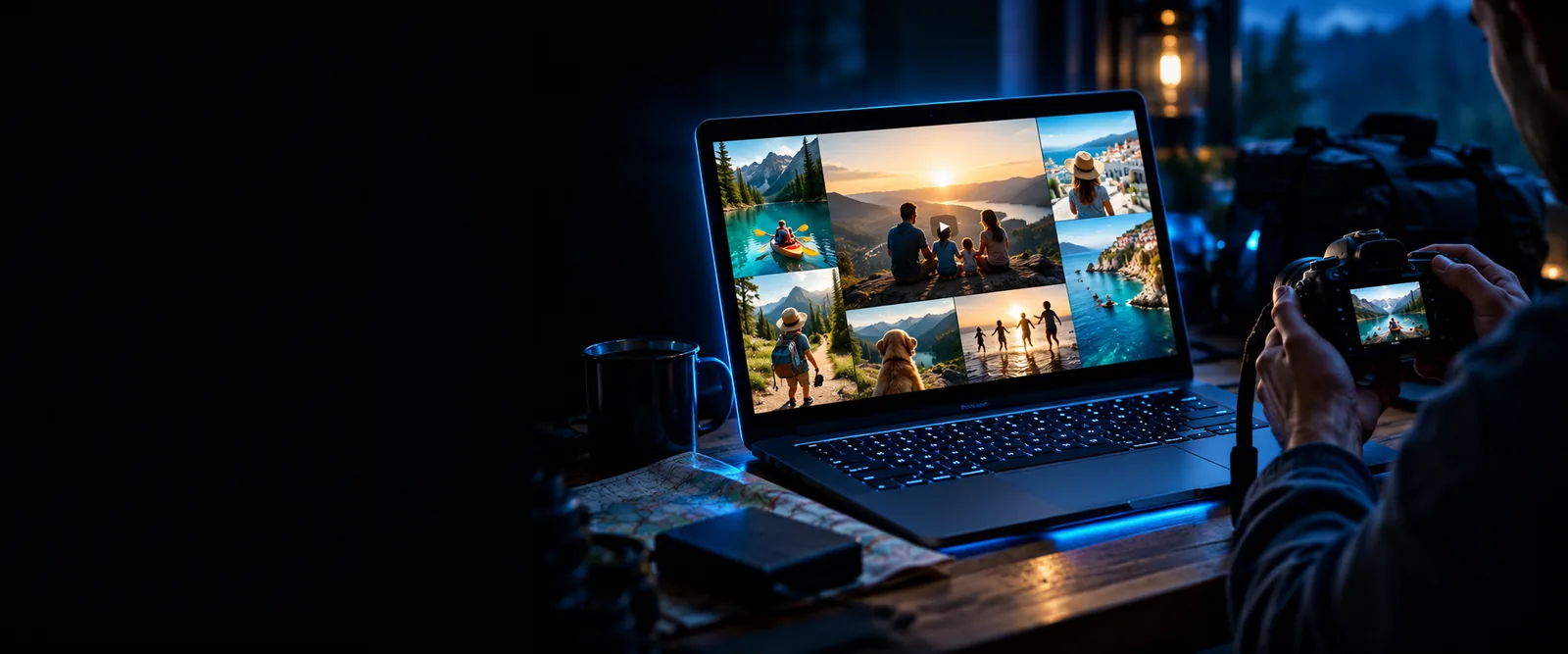
Movie Maker landing visual introducing video creation

the audience's existing pipeline

Most projects begin outside the editor: clips sit on a phone, photos live in folders, and the intended viewer has not been defined. Pick an audience before choosing transitions or music.

Family storyteller

A birthday has left you with short phone clips, portrait photos, and a few messages from relatives. Gather them by date, choose a brief opening, and keep the moments people will recognize. If you are learning the basics of arranging clips on a computer, the linked PC guide offers a starting point.

A birthday story with a beginning, a few highlights, and a closing message that can be checked with family before it is shared.

how to use movie maker on pc

Small-business owner

Product photos, close-ups, and a demonstration clip are scattered across folders. Select the clearest view of the product first, then use supporting shots to explain its purpose. An online workflow may suit a team that needs to prepare material across devices.

A focused product showcase whose opening makes the subject clear even when someone watches without sound.

movie maker online

Windows 10 learner

You have a trip folder but are unsure which application or editing steps apply to your PC. Check what software is actually installed before following a tutorial; the name Movie Maker can refer to different products. Then sort clips into arrival, activity, and departure.

A travel recap planned around a simple sequence rather than every file in the folder.

how to use movie maker on windows 10

Channel creator

A recording contains a useful explanation, but its best point arrives late. Identify the audience question, move the answer near the start, and mark footage that illustrates it. For channel-specific ideas, compare examples before committing to an edit.

An outline for a viewer-first video with an opening promise, supporting footage, and a clear ending.

youtube movie maker examples

Movie Maker helps you turn a folder of possible material into a production brief: decide what the viewer should understand, which clips support it, and what must be checked before sharing. The related guides address different decisions along that path.

before/after

A useful before-and-after comparison is about the viewer's experience, not an invented claim that one tool automatically fixes footage. Choose an approach based on the material you have and the story it can support.

When

Before: a camera roll mixes repeated takes, unrelated moments, and clips in no deliberate order.

Then

After: a family montage groups the strongest moments into an opening, a short middle, and a personal closing.

The change comes from selection and sequence. On Windows 10, preview the whole movie maker project to catch abrupt cuts or a photo that stays on screen longer than intended.

When

Before: product footage shows attractive details but never makes the item's purpose obvious.

Then

After: the first shot establishes the product, the middle shows it in context, and the ending reinforces the point.

A clear order does more work than extra effects. Check that captions, if used, describe what is visible and remain readable on the intended screen.

When

Before: a travel folder contains many similar views and no sense of a journey.

Then

After: a recap moves from arrival through a few distinct places to a final scene.

Limiting repetition gives each location a purpose. Keep original files separate so you can revise the sequence without losing source material.

deliverable spec

Plan the version your audience will actually watch

For a practical Windows 10 movie maker example, write a one-sentence purpose, list the source clips and photos, and sketch the opening, middle, and ending before editing. Review the result from start to finish: check clip order, text legibility, audio balance, and whether the ending feels complete. Confirm the export settings and playback in the application you choose rather than assuming that every product called Movie Maker offers the same options. Keep the source folder and a copy of the final file so later corrections do not depend on finding the footage again.

Explore video creation
  • One audience and one clear purpose
  • An ordered selection of source material
  • A complete playback check before sharing

scenario FAQ

These answers focus on choosing and preparing examples, not on promising a particular feature in an unspecified Windows 10 editor.

A birthday story, a short travel recap, or a simple product introduction gives you a clear reason to select and order footage. Start with a small set of files and one intended viewer. That makes it easier to notice whether the sequence communicates anything before adding polish.

A photo sequence can tell a story if the images have a meaningful order and enough variety. For example, a family recap might move from preparations to the event and finish with a group photo. Check the capabilities of the application you choose on Windows 10 before planning around specific motion or audio controls.

Pick footage that establishes where you went, shows a few distinct experiences, and provides an ending. Leave out repeated views unless they add new information. Watching a rough sequence straight through is often more useful than judging individual clips in isolation.

Show the product clearly, demonstrate its context or use, and finish with the point you want viewers to remember. Use close-ups only when they clarify a detail. Review any on-screen text at the size your audience is likely to see.

The story outlines are application-independent, but editing and export controls vary between products. Confirm which app is on your Windows 10 PC and check its supported inputs before starting a project. Treat the examples as planning briefs rather than instructions for a particular interface.

Create a movie
Create a movie